Navigating communication in Roblox can sometimes feel like a mini-game itself, especially for busy adult gamers balancing life, work, and their passion for virtual worlds. You want to connect with friends, coordinate gameplay, or just unwind with some social interaction, but figuring out the best way to message someone on Roblox isnt always intuitive. This comprehensive guide is designed to cut through the confusion, offering practical, step-by-step solutions for everything from adding friends and sending direct messages to understanding privacy settings and utilizing in-game chat. We’ll cover essential tips to ensure your Roblox social experience is smooth, secure, and fun, helping you stay connected without the hassle. Discover how to effortlessly chat with fellow players, manage your friend list, and make the most of Roblox’s communication features, ensuring you spend less time troubleshooting and more time gaming.
How do I send a private message to a friend on Roblox?
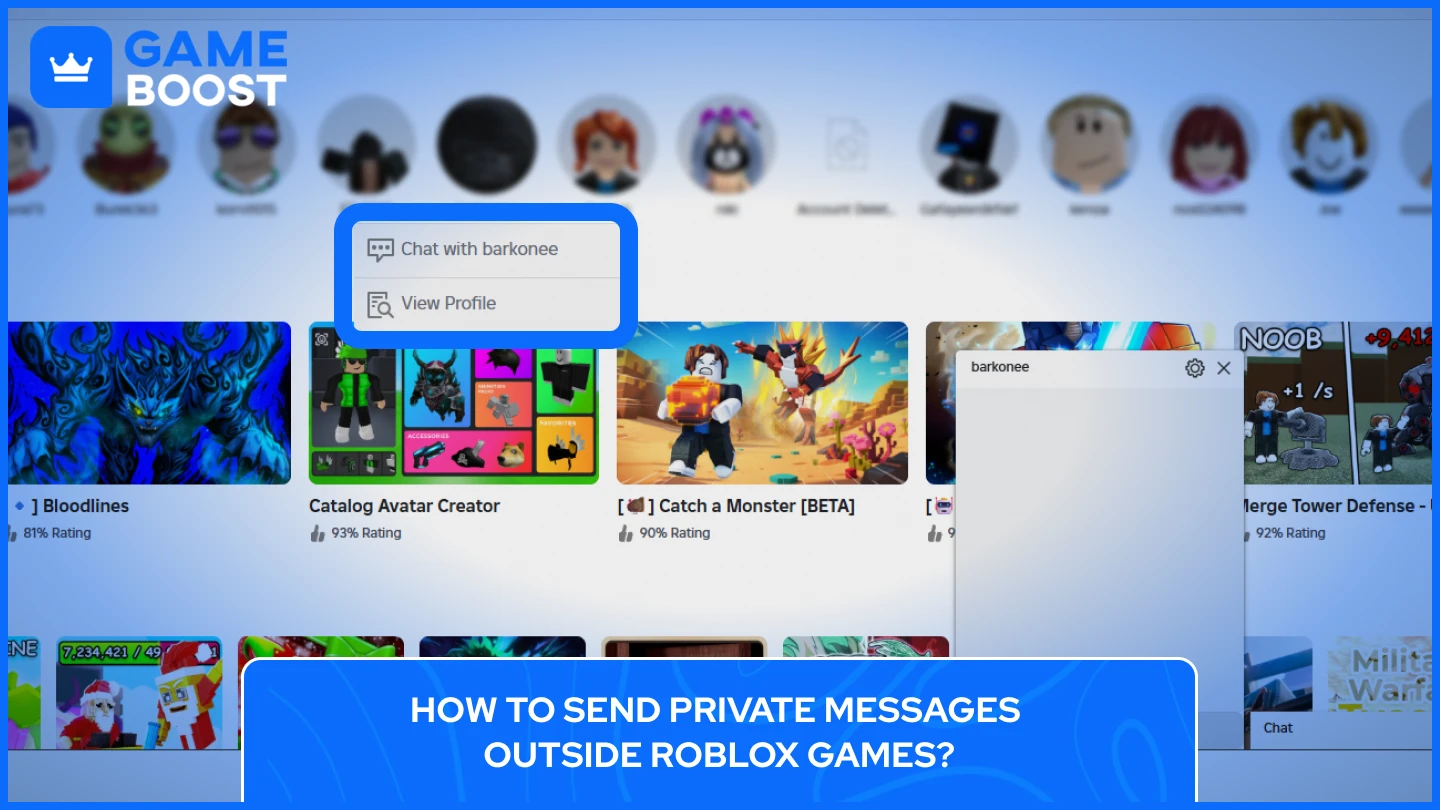
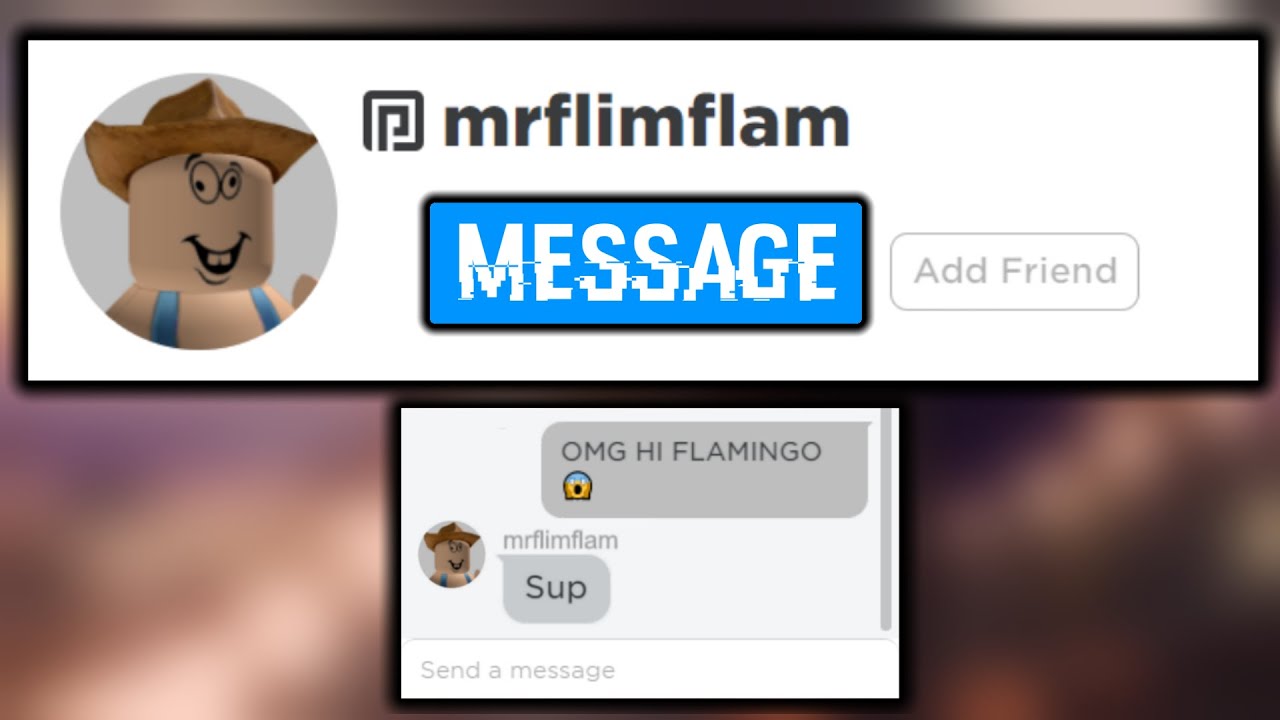
To send a private message, first ensure you are friends. Then, go to your 'Friends' section, click on your friend's name to visit their profile, and select the 'Message' button. A chat window will open where you can type and send your private conversation.
What are the privacy settings for controlling who can message me on Roblox?
You can adjust who messages you by going to 'Settings' > 'Privacy' on Roblox. Under 'Contact Settings', you'll find options like 'Who can message me?', allowing you to select 'Friends' or 'No one' to manage incoming direct messages.
Can I initiate a chat with someone not on my Roblox friend list?
No, you cannot directly send a private message to someone who isn't on your Roblox friends list. To enable private messaging, you must first send them a friend request, and they must accept it, after which they will appear in your friends list.
What's the easiest way to add a new friend on Roblox to enable messaging?
The easiest way to add a new friend is by searching for their exact username via the main search bar on the Roblox website or app. Once on their profile page, click the 'Add Friend' button, and upon their acceptance, you can begin private messaging.
Why am I unable to message a friend even after we've become friends on Roblox?
If you cannot message a friend despite being connected, the most common reason is their privacy settings. They might have their 'Who can message me?' option set to 'No one' or 'Friends and Users I Follow'. They would need to adjust this setting to allow messages from friends.
How do age restrictions impact messaging capabilities on Roblox?
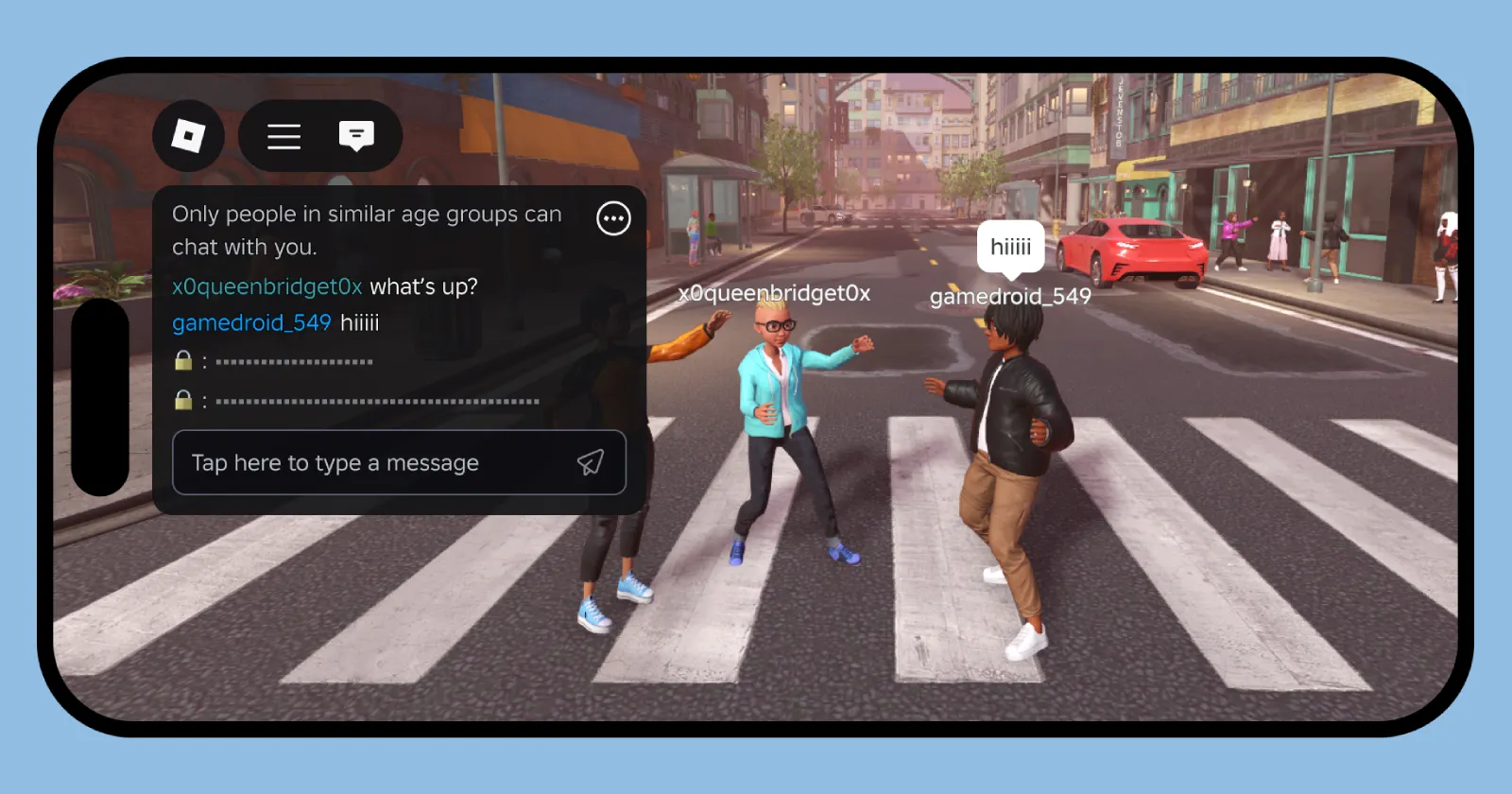
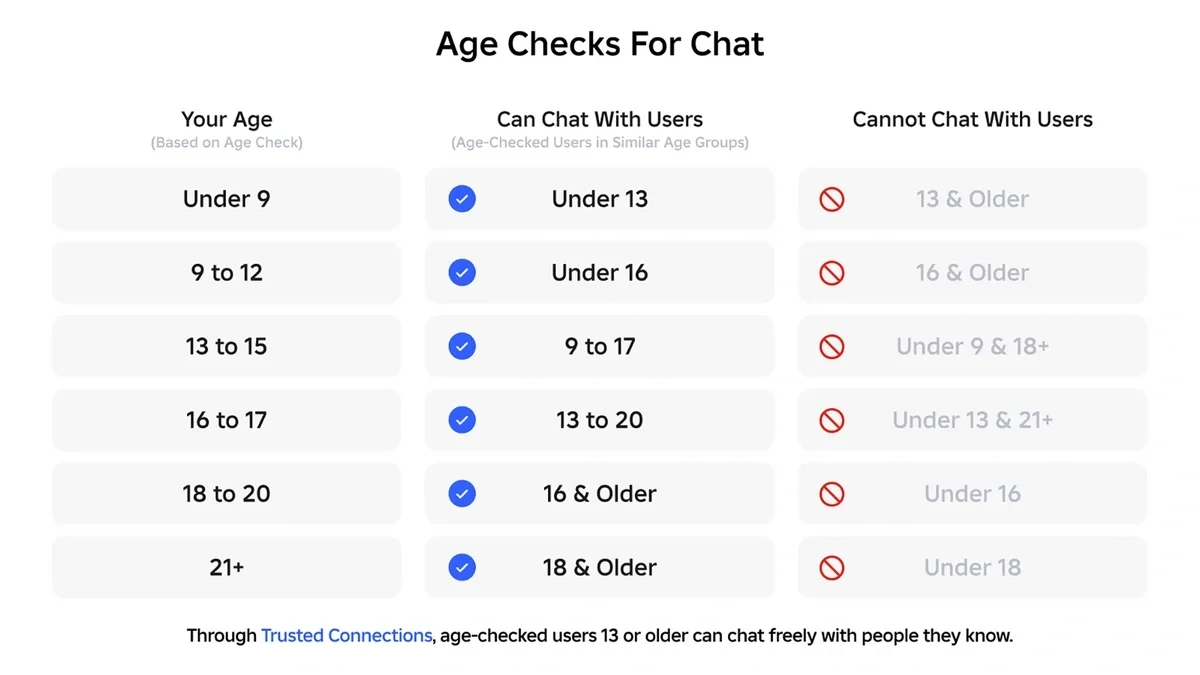
Age restrictions on Roblox significantly filter chat. Users under 13 have heavily restricted chat, often limited to friends with strict filtering. Users 13+ have more communication flexibility, but all messages must still adhere to Roblox's community standards and filters.
Are there any group chat features on Roblox for coordinating with multiple friends?
Yes, Roblox offers group chat features. You can create a new group chat from your 'Chat' section by selecting 'Create Group' and inviting multiple friends from your friend list. This is ideal for coordinating teamwork or planning multi-player gaming sessions.
For many of us, gaming isn't just about high scores or epic quests; it's a vital way to unwind, connect with friends, and build communities. With 87% of US gamers regularly diving into their favorite titles, often for 10+ hours a week, and mobile platforms dominating social gaming, platforms like Roblox have become digital hangouts. But let's be real, life outside the game is demanding. Balancing jobs, family, and personal commitments means your gaming time is precious. You want to jump in, relax, and connect with your crew, not spend valuable minutes trying to figure out how to send a simple message. If you've ever wondered 'how to message someone on Roblox' efficiently, without navigating a maze of menus or privacy hurdles, you're in the right place. This guide is built for you: the adult gamer who values straightforward solutions, wants to optimize their social play, and cut straight to the fun.
Roblox communication is dynamic, offering various ways to interact. However, understanding the nuances of friend requests, privacy settings, and in-game chat can sometimes feel like a puzzle. This article will break down every aspect of messaging on Roblox, ensuring you can connect with friends and fellow players seamlessly. We'll cover everything from the basics of adding friends to advanced tips for managing your privacy, all designed to enhance your social gaming experience and keep you current with the best practices in 2026. Get ready to simplify your Roblox social life and enjoy more of what you love – gaming with friends.
How Do I Send a Direct Message to a Friend on Roblox?
Sending a direct message (DM) on Roblox is your go-to method for private conversations with friends. The process is straightforward once you know where to look, making it easy to coordinate game sessions or just catch up. To initiate a private message, you first need to be friends with the person you wish to contact. This ensures a level of security and privacy within the platform, a key feature for many gamers.
Here are the steps to send a direct message:
Log in to your Roblox account on the website or through the mobile app.
Navigate to the 'Friends' section. You'll usually find this icon on the left sidebar (website) or at the bottom of the screen (mobile app).
Locate the friend you want to message in your friends list. You can use the search bar if you have many friends.
Click or tap on their username. This will open their profile page.
On their profile, look for the 'Message' button. It's typically a speech bubble icon or explicitly labeled. Click this button.
A chat window will open. Type your message into the text box and press 'Enter' or the 'Send' button to send it.
Remember, once you've messaged a friend, that conversation will appear in your 'Chat' history, making it easy to pick up where you left off. This streamlined process is designed for quick and efficient communication, perfect for gamers with limited time.
What are the Roblox Privacy Settings for Messaging and How Can I Adjust Them?
Privacy is paramount in online gaming, especially for adults balancing digital interactions with real-world responsibilities. Roblox offers robust privacy settings that allow you to control who can message you, who can chat with you in-game, and more. Understanding and adjusting these settings is crucial for a safe and enjoyable experience, reflecting the trend of increasing user control over personal data in 2026 gaming environments.
To adjust your messaging privacy settings:
Log in to your Roblox account.
Click on the gear icon (Settings) located in the top-right corner of the website or the three dots (...) icon on mobile, then select 'Settings'.
From the Settings menu, choose 'Privacy'.
Here you'll find various options under 'Contact Settings' and 'Other Settings'. The key ones for messaging include:
Who can message me?: Options typically include 'Friends' or 'No one'. For busy gamers, setting this to 'Friends' usually strikes the right balance, allowing communication with trusted connections while filtering out unsolicited messages. Setting it to 'No one' is an option for complete privacy.
Who can chat with me in-game?: Similar options, often including 'Friends', 'Friends and Users I Follow', or 'No one'. This controls public chat within games.
Select your preferred options for each setting. Remember to click 'Save' or ensure the changes are applied automatically.
Regularly reviewing these settings ensures your communication preferences align with your current comfort level, helping you manage your online social interactions effectively.
Can I Message Someone Who Isn't My Friend on Roblox?
Generally, Roblox prioritizes communication between established friends for safety and privacy reasons. This means sending a direct private message to someone who isn't on your friends list is not directly possible through the standard messaging system. This design helps prevent spam and unwanted contact, a feature highly valued by adult gamers seeking a hassle-free experience.
However, there are indirect ways to communicate with non-friends:
In-game Chat: If you're in the same game experience, you can use the public in-game chat. Be mindful that in-game chat is often filtered and visible to everyone in that server. This is a common way to initiate contact before sending a friend request.
Sending a Friend Request: The most direct way to enable private messaging with someone new is to send them a friend request. If they accept, you'll then be able to message them directly. This is the standard etiquette for establishing private communication.
Always exercise caution when interacting with new people online. If someone seems suspicious or makes you uncomfortable, use Roblox's reporting features and block options.
How Do I Add a Friend on Roblox to Start Messaging Them?
Adding friends is the gateway to private messaging on Roblox. It's a fundamental step for connecting with people you know or new acquaintances from shared game experiences. Given that social gaming is a huge draw for the 60% of US gamers who play regularly, knowing how to expand your friend network is key.
To send a friend request:
Find their Profile: The easiest way is to search for their username directly on the Roblox website or app. Use the search bar, usually at the top, and type in their exact username.
Visit their Profile Page: Click on their username from the search results to go to their profile.
Send Request: On their profile page, you'll see a button that says 'Add Friend' or has a person icon with a plus sign. Click this button.
Wait for Acceptance: The other player will receive your friend request. Once they accept it, they will appear in your friends list, and you will be able to send them direct messages.
You can also send friend requests to players you meet in-game by clicking on their avatar or username in the player list, then selecting 'Add Friend'. This makes it convenient to connect with new gaming buddies on the fly.
What Are the Best Practices for Safe and Respectful Messaging on Roblox?
Maintaining a positive and safe online environment is crucial, especially for a platform with a diverse age range like Roblox. For adult gamers, setting a good example and understanding platform etiquette ensures a pleasant experience for everyone. In 2026, online safety and digital citizenship are more important than ever.
Here are some best practices:
Be Respectful: Always communicate kindly and respectfully. Avoid offensive language, bullying, or harassment.
Protect Personal Information: Never share personal details like your real name, address, phone number, school, or account passwords. Roblox is designed for anonymity.
Report Suspicious Behavior: If someone is bothering you, asking for personal info, or sending inappropriate messages, use Roblox's built-in 'Report' feature immediately. This helps the platform maintain a safe community.
Use the Block Feature: If you don't want to receive messages from a specific user, you can easily block them from their profile. This instantly stops all communication from that person.
Mind Your Privacy Settings: As discussed, regularly review and adjust your privacy settings to control who can contact you.
Understand Roblox's Community Standards: Familiarize yourself with Roblox's rules. They're there to protect all users and ensure fair play.
Adhering to these practices not only keeps you safe but also contributes to a healthier, more enjoyable gaming community for everyone, which is particularly valued by the ~36-year-old average gamer.
How Can I Use Group Chat Features on Roblox for Team Coordination?
Group chats on Roblox are an excellent tool for coordinating with multiple friends, especially for games that require teamwork or planning. Whether you're organizing a raid, building a complex world together, or just discussing strategy, a dedicated group chat keeps everyone on the same page. This functionality reflects the growing trend of social gaming and collaborative experiences, essential for many adult gamers who enjoy skill-building with their friends.
To create or join a group chat:
From the Chat Tab: On the Roblox website or app, go to your 'Chat' section (usually the speech bubble icon).
Start a New Chat: Look for an option like 'Create Group' or a plus icon to start a new conversation.
Add Members: You'll be prompted to select friends from your friends list to add to the group. Only existing friends can be directly added to a private group chat.
Name Your Group: Give your group chat a descriptive name related to your activity (e.g., 'Tower Defense Squad', 'Build Crew').
Start Chatting: Once created, you can send messages, which all members of the group will see. This is perfect for quick planning and keeping track of your team's progress.
Group chats are dynamic; you can add or remove members as needed, making them flexible for various gaming scenarios. This is especially useful for coordinating gaming sessions around busy schedules, a common pain point for gamers balancing life and play.
What To Do If I Cannot Message Someone on Roblox Even After Adding Them as a Friend?
It can be frustrating when you've done everything right—added a friend—but still can't send them a message. This usually points to one of a few common issues, often related to privacy settings or account status. For gamers who just want to relax and connect, troubleshooting these snags needs to be quick and easy.
Here's a checklist of what to do:
Check Their Privacy Settings: The most common reason is that your friend has their 'Who can message me?' setting set to 'No one'. They will need to adjust this to 'Friends' in their Privacy settings for you to send a direct message.
Check Your Privacy Settings: While less common for sending, ensure your own settings aren't inadvertently blocking outgoing messages (though this is rare).
Verify Friend Status: Double-check that you are indeed listed as friends. Sometimes requests can be pending or accidentally declined. Go to their profile to confirm the 'Friends' status.
Account Restrictions: Ensure neither of your accounts has any active moderation actions or age restrictions that might temporarily limit communication features. For users under 13, Roblox has stricter chat filtering and communication options.
Internet Connection/Platform Glitch: Occasionally, a temporary internet hiccup or a minor Roblox glitch can prevent messages from sending. Try restarting your game or browser, or logging out and back in.
Roblox Status: Check the official Roblox Status page (status.roblox.com) to see if there are any ongoing platform issues affecting chat services. This can often explain widespread problems.
If all else fails, consider using in-game chat if you're in the same game, or reach out via another platform (like Discord, if you share one) to ask your friend to check their settings. Most issues are quickly resolved by adjusting privacy preferences.
How Does Age Restriction Affect Messaging on Roblox?
Roblox implements strict age-based communication restrictions to ensure a safe environment, particularly for younger players. This is part of a broader industry trend focusing on child online safety. For adult gamers (average age ~36) playing with family members or younger friends, understanding these limitations is essential.
Key impacts of age restriction:
Under 13 Accounts: Players under 13 years old have significantly more filtered chat and limited communication options. They can typically only chat with 'Friends' and 'Groups' they belong to, and all chat is heavily filtered to remove personal information and inappropriate content. This means adult language or specific coordination terms might be blocked.
13+ Accounts: Players aged 13 and older have more flexible communication options, including the ability to choose 'Friends' or 'Friends and Users I Follow' for messaging and in-game chat, with less restrictive filtering. However, all communication must still adhere to Roblox's Community Standards.
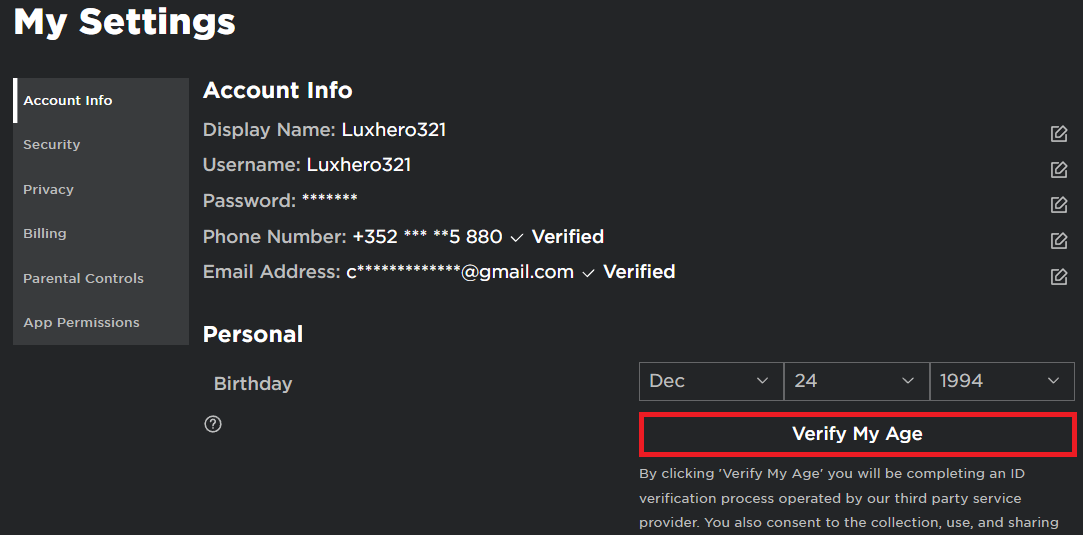
Account Verification: Roblox encourages age verification, which can sometimes unlock additional features or confirm age for certain content experiences, though it doesn't drastically change the core messaging privacy settings.
These restrictions are in place to comply with online child protection laws and create a safer space. If you're trying to message a younger player, be aware that their chat will be heavily filtered, and direct messaging capabilities might be limited by their parental settings or Roblox's default restrictions.
Connecting with friends and fellow gamers on Roblox shouldn't be a chore. By understanding the straightforward process of adding friends, utilizing direct and group messaging, and fine-tuning your privacy settings, you can ensure your social gaming experience is smooth and enjoyable. Remember, platforms like Roblox are evolving to offer better connectivity and safety, reflecting the needs of a diverse gaming community that values both fun and security. Embrace these tools to enhance your playtime, coordinate effectively, and build stronger bonds within your gaming circle.
What's your biggest gaming challenge when trying to connect with friends online? Share your thoughts and tips in the comments below!
FAQ Section
How do I know if someone blocked me on Roblox?
Roblox doesn't directly notify you if you've been blocked. You'll usually notice you can no longer send them messages, see their profile, or find them in your friends list. If you attempt to search for them, their profile may appear inaccessible or show an error.
Can I recover deleted Roblox messages?
No, once you delete a message or an entire chat conversation on Roblox, it is permanently removed from your account and cannot be recovered. Always be mindful before deleting important conversations.
What is the difference between in-game chat and direct messages on Roblox?
In-game chat is public communication within a specific game server, visible to all players in that game (subject to filters). Direct messages (DMs) are private, one-on-one conversations between you and a Roblox friend, accessible from your main chat tab.
Why are my Roblox messages getting filtered?
Roblox uses an automatic text filter to remove inappropriate content, personal information, and comply with safety regulations, especially for users under 13. Messages containing numbers, specific words, or phrases might be filtered or replaced with hashtags.
Can I message Roblox support through the platform?
No, you cannot directly message Roblox support through the in-game or website messaging system. To contact Roblox Support, you need to use their official support form on the Roblox Help website (support.roblox.com).
How do I report an inappropriate message on Roblox?
To report an inappropriate message, open the chat conversation, click the gear icon for chat settings, and select 'Report'. Follow the prompts to specify the message and reason. This helps Roblox maintain a safe community.
Is there a way to video or voice chat on Roblox?
Roblox has introduced Spatial Voice for certain experiences and age-verified users (13+), allowing voice chat within those specific games. However, there is no native video chat functionality on the platform. Direct messaging remains text-based.
Learn how to send direct messages on Roblox, Understand and adjust Roblox privacy settings for messaging, Discover how to add friends to enable private conversations, Master using in-game chat effectively and safely, Troubleshoot common messaging issues, Explore group chat functionalities.
35


How To Message On Roblox 2026 A Quick Guide . How To Message On Roblox 2026 A Quick Guide . How To Message Someone On Roblox Step By Step Guide 2026 YouTube . How To Message On Roblox 2026 A Quick Guide Private Chat In Roblox Step 11 . How To Message On Roblox 2026 A Quick Guide



How To Message On Roblox 2026 A Quick Guide . Roblox Is Testing Age Group Aware Chat Indicators In Experience Chat Roblox Chat Lock. How To Message On Roblox 2026 A Quick Guide . How To Message On Roblox 2026 A Quick Guide . How To Message On Roblox 2026 A Quick Guide




How To Message On Roblox 2026 A Quick Guide . How To Message On Roblox 2026 A Quick Guide . Roblox S New Chat Rules Explained January 2026 Image 827 . How To Message On Roblox 2026 A Quick Guide . How To Message On Roblox 2026 A Quick Guide



How To Message On Roblox 2026 A Quick Guide . How To Report Roblox Issues A Gamer S Essential Guide 2026 Aid11828394 V4 728px Report Someone On Roblox Step 13 . How To Message On Roblox 2026 A Quick Guide . How To Find Cheapest Roblox Limiteds A 2026 Guide Roblox Press Image 1 . How To Message On Roblox 2026 A Quick Guide V4 460px Delete Roblox Messages Step 4


How To Message On Roblox 2026 A Quick Guide . How To Message On Roblox 2026 A Quick Guide . How To Message On Roblox 2026 A Quick Guide SL1500 . How To Message On Roblox 2026 A Quick Guide . How To Message Someone On Roblox Without Being Friends 2026 YouTube


Reinstated 12 16 2025 Banned AGAIN 01 14 2026 Account Hacked 2 1023x391 . How To Message On Roblox 2026 A Quick Guide . How To Message Someone On Roblox Without Being Friends 2024 YouTube . All 5 Ways To Private Chat In Roblox Step By Step Guide 4ff228a0 5dc2 49c0 8c5d. How To Message ANYONE On ROBLOX Without Being FRIENDS With HIM WORKING


How To Find Cheapest Roblox Limiteds A 2026 Guide Ugs Limited Codes 3 . Level Up Your Roblox Chat Talking To People Made Easy. How To FIX Your Chat Settings Prevent You From Sending Messages In . How To Private Chat People In Roblox 2025 YouTube . Roblox 2026 How Can Players Get Verified 2 Verify Age